AI · 05 / 06
AI document assistant
Ask your company files. Get answers with the source.
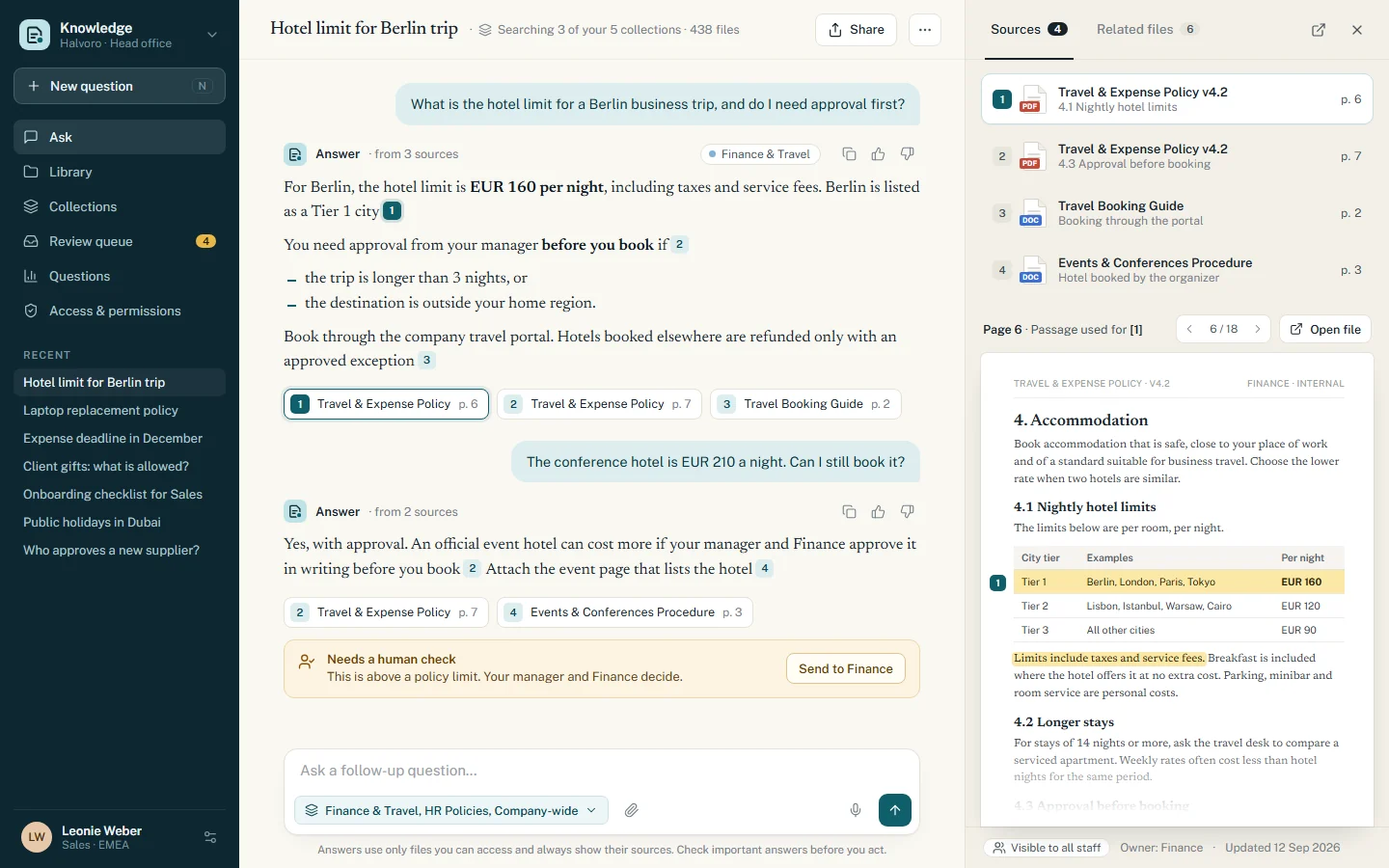
An internal assistant that answers staff questions from the company's own policies, contracts and manuals. Every answer shows the file and page it came from, and each person only gets answers from files they are allowed to open.
- Made for
- Companies whose answers sit in policies, contracts and manuals.
- Used by
- Staff who ask questions, and admins who choose who can see what.
- Runs on
- The web, and a mobile app for staff away from their desk.
The challenge
What needed solving
In many companies, the answer to a question is already written down somewhere, in one of hundreds of policies, contracts and manuals.
People can't find the right file or the right page, so they ask a colleague, use an old version or guess. The same questions reach HR, Finance and Legal again and again. A general chatbot doesn't solve this: it can't see internal files, it can't show where an answer came from, and it doesn't know who is allowed to see what.
Features
07 partsWhat we built
Seven parts that turn company files into answers people can check.
Answers with sources
Every answer links to the file and page it came from. One click opens the page with the passage highlighted, so people can check it themselves.
Document library
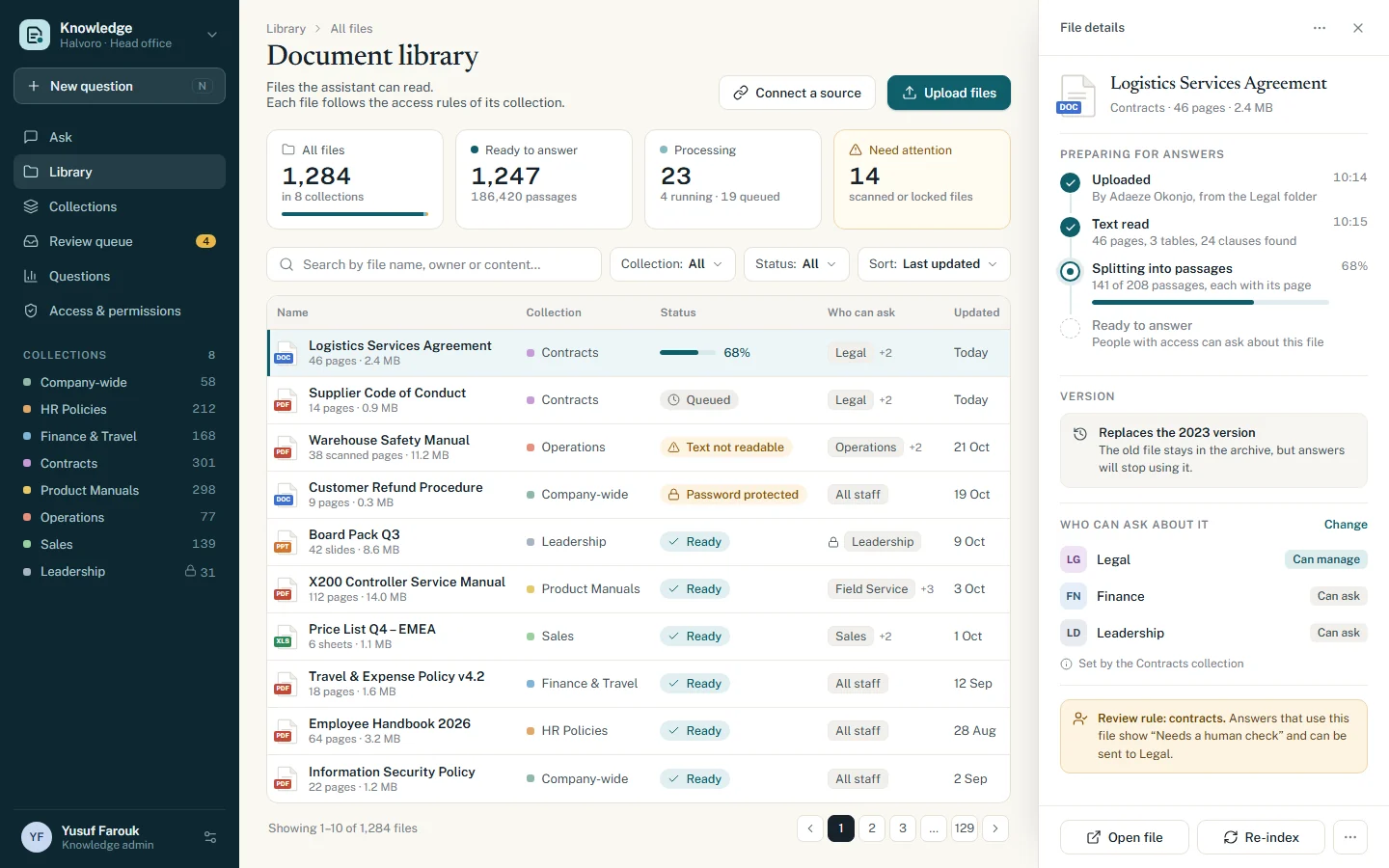
Upload files or connect a shared folder. Each file shows its status: ready, processing, or needs attention, for example a scanned page or a password-protected file.
Access by team
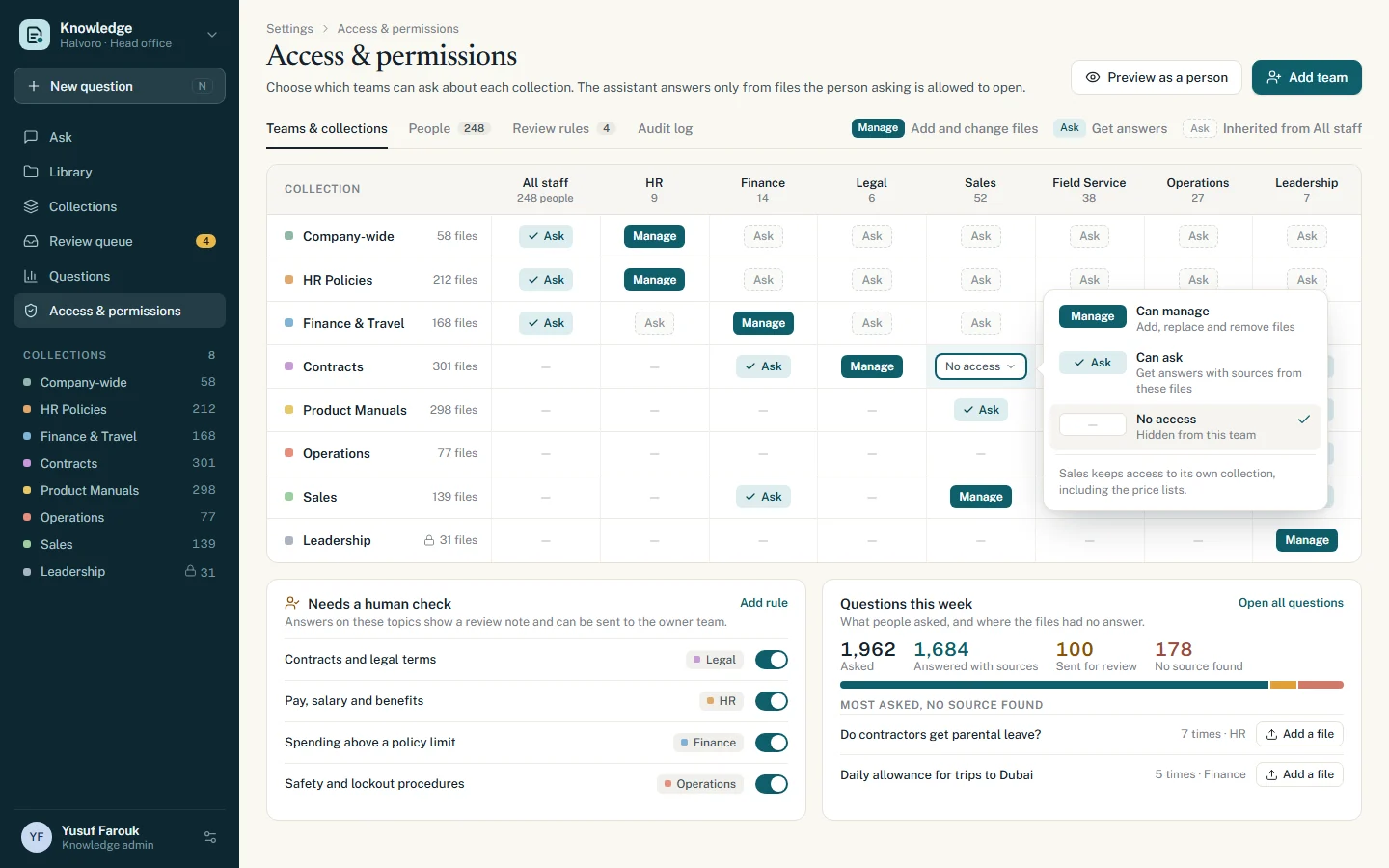
Admins choose which teams can ask about each collection. The assistant answers only from files the person asking is allowed to open.
Human check for important topics
Answers about contracts, pay, spending limits or safety show a clear review note. People can send them to the owner team before they act.
Questions dashboard
Admins see what people ask and which answers went for review. Questions with no source are listed, so admins can add the missing file.
Current versions only
When a new version of a file is uploaded, answers stop using the old one. The old file stays in the archive.
Ask on the go
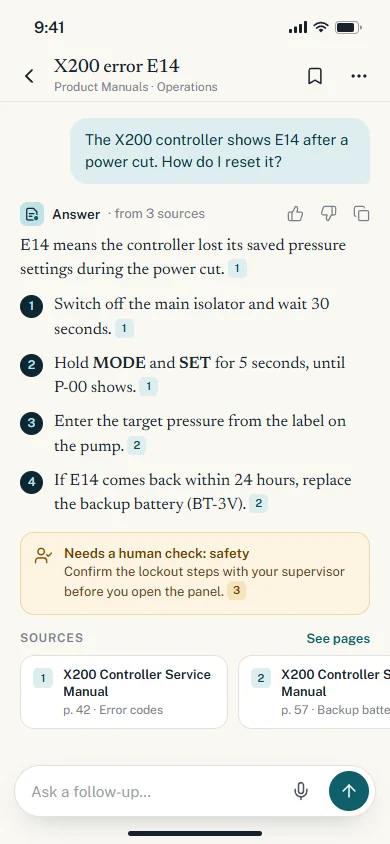
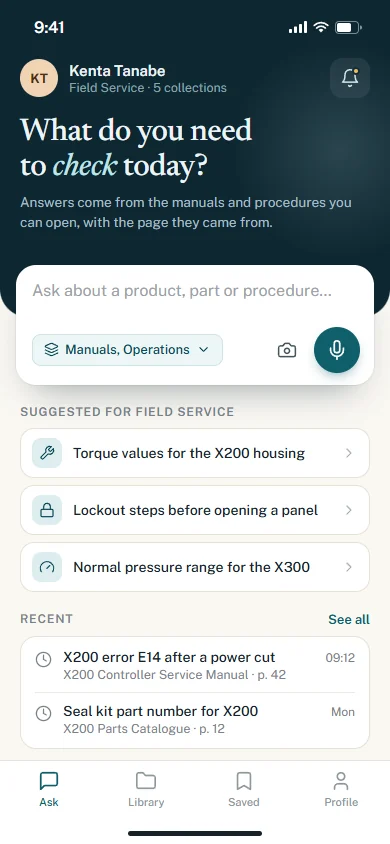
A mobile app for staff away from their desk, with voice questions and the same sources and access rules.
How it works
04 stepsFrom first click to daily use
- 01
Collect the files
We connect the shared folders and upload the existing documents. Each file goes into a collection, such as HR Policies, Contracts or Product Manuals.
- 02
Prepare them for search
The system reads the text, including tables, and splits each file into short passages linked to their page. Scanned or locked files are flagged so someone can fix them.
- 03
Set the rules
Admins choose which teams can ask about each collection, and which topics always need a human check.
- 04
Ask and check
Staff ask in plain words on the web or on their phone. Each answer comes with its sources so they can check it. If the files don't cover a question, the assistant says it found no source.
Built with
The tools behind it
- Next.js
- React
- Python (FastAPI)
- PostgreSQL with pgvector
- Redis
- OpenAI / Claude APIs
- Tesseract OCR
- Flutter
- AWS / DigitalOcean
Next project
06 / 06Delivery app and dispatch board
Contact
Want something like this?
Tell us how your business works. We'll suggest what fits, even if that's a ready-made tool. No tech words needed.
What do you need?
Chat on WhatsApp+90 552 257 90 00 // Emailinfo@qcoders.com
AI
AI document assistant
Ask your company files. Get answers with the source.
An internal assistant that answers staff questions from the company's own policies, contracts and manuals. Every answer shows the file and page it came from, and each person only gets answers from files they are allowed to open.
- Made for
- Companies whose answers sit in policies, contracts and manuals.
- Used by
- Staff who ask questions, and admins who choose who can see what.
- Runs on
- The web, and a mobile app for staff away from their desk.
The challenge
What needed solving
In many companies, the answer to a question is already written down somewhere, in one of hundreds of policies, contracts and manuals.
People can't find the right file or the right page, so they ask a colleague, use an old version or guess. The same questions reach HR, Finance and Legal again and again. A general chatbot doesn't solve this: it can't see internal files, it can't show where an answer came from, and it doesn't know who is allowed to see what.

Features
What we built
Seven parts that turn company files into answers people can check.
-
Answers with sources
Every answer links to the file and page it came from. One click opens the page with the passage highlighted, so people can check it themselves.
-
Document library
Upload files or connect a shared folder. Each file shows its status: ready, processing, or needs attention, for example a scanned page or a password-protected file.
-
Access by team
Admins choose which teams can ask about each collection. The assistant answers only from files the person asking is allowed to open.
-
Human check for important topics
Answers about contracts, pay, spending limits or safety show a clear review note. People can send them to the owner team before they act.
-
Questions dashboard
Admins see what people ask and which answers went for review. Questions with no source are listed, so admins can add the missing file.
-
Current versions only
When a new version of a file is uploaded, answers stop using the old one. The old file stays in the archive.
-
Ask on the go
A mobile app for staff away from their desk, with voice questions and the same sources and access rules.
-
Built with
- Next.js
- React
- Python (FastAPI)
- PostgreSQL with pgvector
- Redis
- OpenAI / Claude APIs
- Tesseract OCR
- Flutter
- AWS / DigitalOcean
How it works
From first click to daily use
-
Document library: see which files are ready, still processing, or need attention. Collect the files
We connect the shared folders and upload the existing documents. Each file goes into a collection, such as HR Policies, Contracts or Product Manuals.
Document library: see which files are ready, still processing, or need attention.
-
Document library: see which files are ready, still processing, or need attention. Prepare them for search
The system reads the text, including tables, and splits each file into short passages linked to their page. Scanned or locked files are flagged so someone can fix them.
Document library: see which files are ready, still processing, or need attention.
-
Access and permissions: choose which teams can ask about each collection and which topics need a human check. Set the rules
Admins choose which teams can ask about each collection, and which topics always need a human check.
Access and permissions: choose which teams can ask about each collection and which topics need a human check.
-
Mobile: ask a quick question by typing or by voice. Ask and check
Staff ask in plain words on the web or on their phone. Each answer comes with its sources so they can check it. If the files don't cover a question, the assistant says it found no source.
Mobile: ask a quick question by typing or by voice.

Contact
Want something like this?
Pick what you need and we'll write the first message for you. No tech words needed.